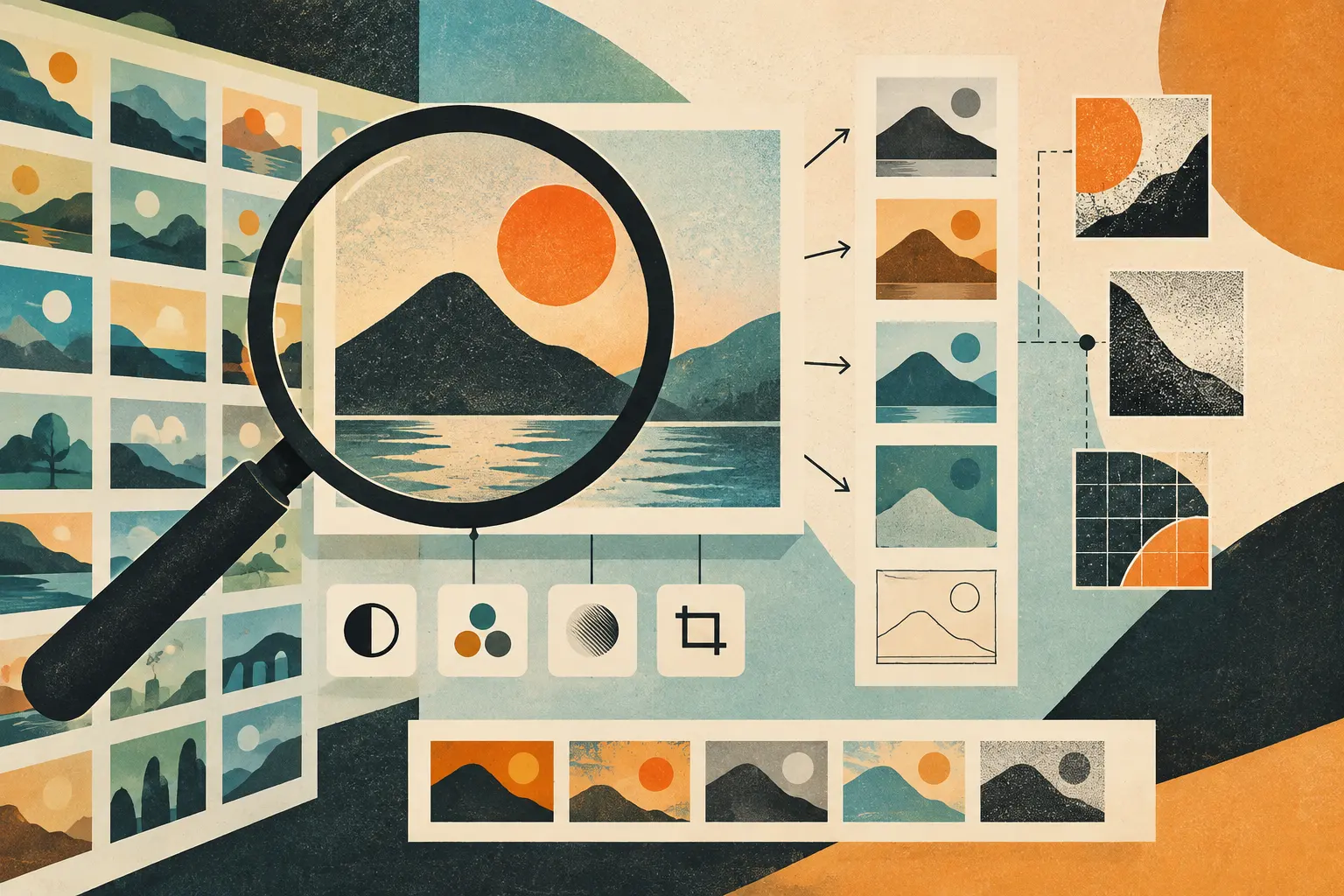
Searching for images can mean several things: exploring results from words, identifying what appears in a picture, or finding copies and altered versions of a particular file. Tools may mix these kinds of results, but they do not answer the same question. Separating the tasks makes it easier to choose a method and interpret what you find.
From AlltheWeb filters to today’s visual searches
FIT’s historical image-search catalogue described AlltheWeb Advanced Pictures Search as offering options for file type, color, grayscale or line art, and transparent or non-transparent backgrounds. It also listed AltaVista Image Search and Ask.com Search Images. The catalogue helps show how some image searches were organized: a query could combine words with visual and technical filters. It is not a description of services available today.
The current AlltheWeb Advanced Pictures Search link redirects to a Yahoo advanced-search page that returns a 404 error. That address does not establish a precise shutdown date, nor does it show that every historical AlltheWeb page has disappeared.
Google dates the launch of Google Images to 2001 and Search by Image to 2011. For computers, current Google Help describes Google Lens as a visual search that can return results about objects, similar images, and pages featuring the image or a similar one. The through line is a shift from filtering image collections to querying with an image; the features, indexes, and interfaces are not interchangeable.
Three tasks, three kinds of results
- Keyword discovery: Start with a description—such as “modern art exhibition poster”—to find images indexed and associated with those terms. Filters help narrow results; they do not necessarily find an exact copy of a known image.
- Recognition and visual similarity: Start with an image to search for objects, subjects, or visually related images. Results may show images of the same kind or subject without being the same photograph or illustration.
- Reverse matching: Submit a particular image to find copies or matching versions, including ones that have been cropped, resized, or edited. This is different from finding different images of the same subject.
| Task | Tool and input | What a result may mean | Important limit |
|---|---|---|---|
| Discover images | Google Images or Bing Images: keywords and available filters | An image is indexed and associated with the query or its metadata | It does not show that every relevant image has been found or that a result has a suitable license |
| Identify a subject or explore similarities | Google Lens or Bing Visual Search: upload, drag, or select an image, depending on the tool | The image looks like others, or contains an object or subject the system connects to web pages | Similarity is not an exact match; recognition can be imprecise |
| Find other appearances of the same image | TinEye: submit an image or its address, where the interface allows | Matching versions appear on pages crawled by TinEye | Matches do not establish authorship, permission, authenticity, or original publication date |
How to search, depending on your goal
Search by keyword and use filters
Start with terms that describe the content and context: subject, place, a known creator, period, or type of work. For a poster, “poster” and “exhibition” might be a start; adding the museum or artist, if known, can guide the query. Try language or descriptive variations if the first set of results is too narrow.
Options depend on the tool and can change. In Google Images, filters such as “Usage rights” can help find images with associated license information. Google says the filter relies on information supplied by the image-hosting site or provider. Follow the license-details link and confirm the terms with both the provider and the source site. The filter is a discovery clue, not a legal guarantee: it does not mean that every image with a Creative Commons license can be reused without conditions. Check attribution, modification, commercial-use, and any other applicable requirements.
Explore an image with Google Lens or Bing Visual Search
On a computer, Google describes three ways to start an image search: upload a file through Google, drag it into the search box, or paste the image’s URL. To copy that address, use the browser option for copying the image address—not the address of the page that contains it—and paste it into “Paste image link.” In Chrome, you can also open Lens from the context menu on an image in a web page. Available options can depend on the browser and interface.
Bing Visual Search offers desktop options such as dragging an image, taking a picture with a webcam, uploading a file, or pasting an image or URL. Microsoft says results may include pages using the image, related images, and other information. Visual search can help explore a subject or find pages; on its own, it does not establish that two images are identical.
Find copies and versions with TinEye
TinEye compares a submitted image with images in its index using a visual fingerprint. TinEye says it can find partial matches and versions that have been cropped, edited, or resized. Its general purpose is not to find different images that merely share a subject. It can therefore complement, rather than replace, a tool that prioritizes visually similar images.
If a results list shows “first found,” the date indicates when TinEye’s crawler first saw that match. It does not necessarily indicate when the image was created or first published online. A gap between publication and crawling can mean an old image has a later first-found date.
A hypothetical example: researching a poster
Imagine a design student looking for references for an exhibition-poster project. First, she searches by keywords—subject, city, institution, or decade—and uses available filters to explore the results. When she finds a poster of interest, she opens the source page and notes who presents it, the authorship information, the date, and the terms of use published by the provider.
Next, she uses an authorized public image of the poster with Google Lens or Bing Visual Search to explore other designs with a similar composition or subject. If she needs to find where a cropped version of that same poster appears, she tries TinEye’s reverse image search. Similarities suggest references worth examining; matches may lead to other pages featuring versions of the image. Neither kind of result proves by itself that a reference is authentic, who owns the rights, or whether reuse is permitted.
A checklist for evaluating results
- Open the page, not just the thumbnail. Check its context, who published or created the image, and what date the page describes. A page date may refer to an update or a publication other than the original.
- Distinguish an image URL from a page URL. The first points to the image file; the second points to the site containing it. In URL-based search flows, pasting the wrong address can change what you are searching.
- Interpret absence cautiously. Search engines can show only images their index and systems have located. No results do not prove that an image does not exist on the web.
- Separate a match from provenance. Finding the same image or a similar one does not prove authorship, permission, authenticity, or publication priority.
- Read dates carefully. TinEye’s “first found” date refers to that service’s crawl, not necessarily the image’s first publication or creation.
- Verify reuse terms at the source. Check the license and its terms with the image-hosting site or licensing provider. A usage-rights filter helps with discovery; it does not replace verification.
- Protect privacy. Use public examples you are authorized to search, and do not upload confidential images or students’ personal photos. Google says it may retain searched URLs to improve its services. Microsoft says photos submitted to Bing may be used to improve image processing. Do not assume all providers handle images or queries in the same way.
Keyword search discovers images labeled or associated with a query; visual search explores what an image depicts and what it resembles; reverse image search traces matches to a particular image. Choosing among them—and checking source pages—turns a list of results into more rigorous visual research.
- Decade
- 2000s
- Region
- Global
- Level
- Introduction
- Entities
- Museum, Internet
Sources and references 8
- FIT: Image search enginesfitnyc.libguides.com · 2026-11-17
- Google Search: 25 biggest moments (Images2001; SearchbyImage2011)blog.google · 2026-11-17
- Search with an image on Google (Computer)support.google.com · 2026-11-17
- Find images you can use and share (Computer)support.google.com · 2026-11-17
- Using Bing Visual Searchsupport.microsoft.com · 2026-11-17
- What is TinEye?help.tineye.com · 2026-11-17
- How does TinEye work?help.tineye.com · 2026-11-17
- What does TinEye first found on mean?help.tineye.com · 2026-11-17